

The teacher who purchased OISA for your school will be the Organisation Administrator and the first member of staff invited. If this is you, you will receive three emails; a welcome email and two emails relating to your organisation’s account.
The second two emails will confirm the addition of OISA to your organisation and prompt you to create your Oxford ID. Follow these steps to create your school account.
Click Create my Oxford ID
Email prompting you to create your Oxford ID

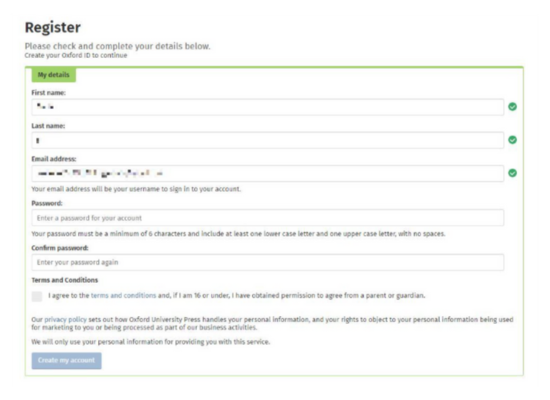
Check the details in the registration form and choose a password to create your Oxford ID.
Click Create my account.
OISA Registration Form
Your Oxford ID has now been created. Your next step is to create your school account on OISA. Click Get Started.

Enter the username and password you confirmed when you registered your Oxford ID
Fill in the form to register your school on OISA. Click continue


You have completed the registration steps and should now have access to the OISA welcome page

Already using OISA or Oxford Reading Buddy?
If you are registered already for Oxford Reading Buddy, you can use your existing username and password to access OISA. This is your Oxford ID.
Creating your school account
The teacher who purchased Oxford Reading Buddy for your school will be the Organisation Administrator and the first member of staff invited.
- Look out for an email with the subject line OISA: You have been added to [school name] as an Organisation Administrator. Click on the button Sign in now in this email
- Read and accept the terms and conditions and click Update my account
- OISA has now been added to your Oxford ID. Your next step is to create your school account on OISA. Click Get Started.
- Fill in the form to register your school on OISA. Click Continue.
- Check your details and click Register the Organization
- Your school has now been added to OISA and you have been added as Organization Administrator. Click Continue.
- Sign in to OISA using your email address and the password you chose when you registered
- Invite relevant staff members
Does your school already have an OISA account?
If your school already has an OISA account, contact your school’s Organisation Administrator. They can send you an email invitation to set up your OISA password and log in.